Start from a calculated 3–6 stop route
Build the route first so LogicCalc has the current stop order, cargo state, active truck profile and cost settings. The first stop remains fixed during optimization.

Use the optimizer after a multi-stop route already exists. LogicCalc keeps the first stop fixed, tests routable alternatives for the remaining sequence and compares feasible candidates using distance, driving time, cargo limits and route economics.
Build the route first so LogicCalc has the current stop order, cargo state, active truck profile and cost settings. The first stop remains fixed during optimization.
LogicCalc checks alternative routable orders and filters out candidates that do not fit the running cargo LDM or weight limits. Timed appointment stops are not reordered in the current version.
The remaining shortlist is evaluated with the real route calculation, including distance, driving time and estimated internal cost. Apply a candidate only after the new sequence makes operational sense.
Use the truck route optimizer when the route exists but the order of several flexible stops is still open.
Test whether a different order of several stops removes an unnecessary detour while keeping the first stop fixed.
Compare feasible sequences by more than kilometres alone, using route time and estimated internal cost as part of the dispatch decision.
Reject stop orders that create an impossible running cargo load against the selected truck's LDM or weight capacity.
Suppose the current sequence is Vienna → Brno → Linz → Prague. The optimizer can test other routable orders for the three stops after Vienna, keep only candidates that remain within the truck's cargo limits, and then compare the shortlisted trips on distance, driving time and internal cost. The exact winner depends on the route and settings; the example illustrates the workflow, not a guaranteed saving.
The multi-stop planner calculates the sequence you enter. The optimizer starts from an existing 3–6 stop route and tests alternative stop orders while keeping the first stop fixed.
No. Candidate orders are routed and the shortlist is compared using distance, driving time and estimated internal cost, after cargo-feasibility checks.
Stops with a fixed appointment are not reordered in the current optimizer version. That prevents the optimization from silently moving a time-critical stop.
The current optimizer requires Avoid Countries to be off so candidate sequences can be compared on the same routing workflow. Use the normal route calculation when a country exclusion is mandatory.
The optimizer is deliberately conservative. It helps with stop order, but it does not replace the dispatcher’s operational validation.
This is a real LogicCalc workspace view. Use your own route, cargo, fleet and commercial settings for the actual calculation.
Open LogicCalc →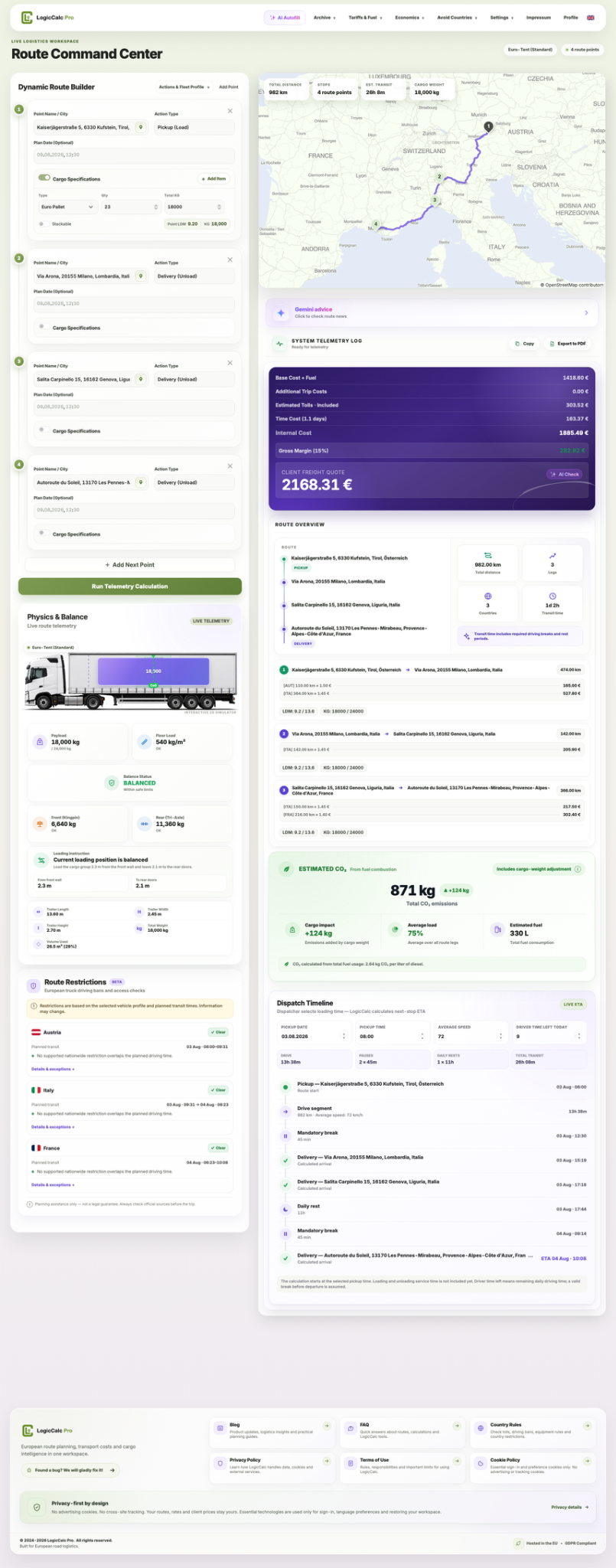
LogicCalc is a planning tool. Always verify operational, legal and contractual requirements for the actual transport.