Build the stop sequence
Enter the origin, destination and any intermediate stops in the order the truck is expected to visit them.

Calculate road distance for the actual truck route between the entered stops and see how the kilometres are distributed across countries. This is route distance, not a straight-line measurement between addresses.
Enter the origin, destination and any intermediate stops in the order the truck is expected to visit them.
LogicCalc routes the journey over the road network and totals the kilometres for each leg instead of measuring direct geographic distance.
Review total kilometres and distance by country so route pricing, toll estimation and route comparison can use the same calculated geometry.
Use the distance calculator when the number you need is operational road kilometres for a defined stop sequence.
Check the road distance of a transport order before using kilometres in a quote, cost calculation or planning decision.
Use the country-distance split as the basis for country-specific kilometre rates and other route-dependent cost logic.
Compare alternative route results on the same stops instead of comparing straight-line distances that a truck cannot actually drive.
Instead of relying on straight-line distance, LogicCalc uses the calculated road route and can split kilometres by country for pricing, toll and route-planning work.
No. The result is based on the calculated road route between the entered stops.
Yes. Origin, destination and optional intermediate stops form the route sequence whose legs are added to the total distance.
A country split lets the same route geometry feed country-based kilometre pricing, toll estimates and route analysis.
Alternative road geometries can use different corridors. That changes total kilometres and can also change the country mix, toll exposure and trip economics.
Distance is meaningful only for the route and stop order that produced it, so recheck the calculation whenever the operational plan changes.
This is a real LogicCalc workspace view. Use your own route, cargo, fleet and commercial settings for the actual calculation.
Open LogicCalc →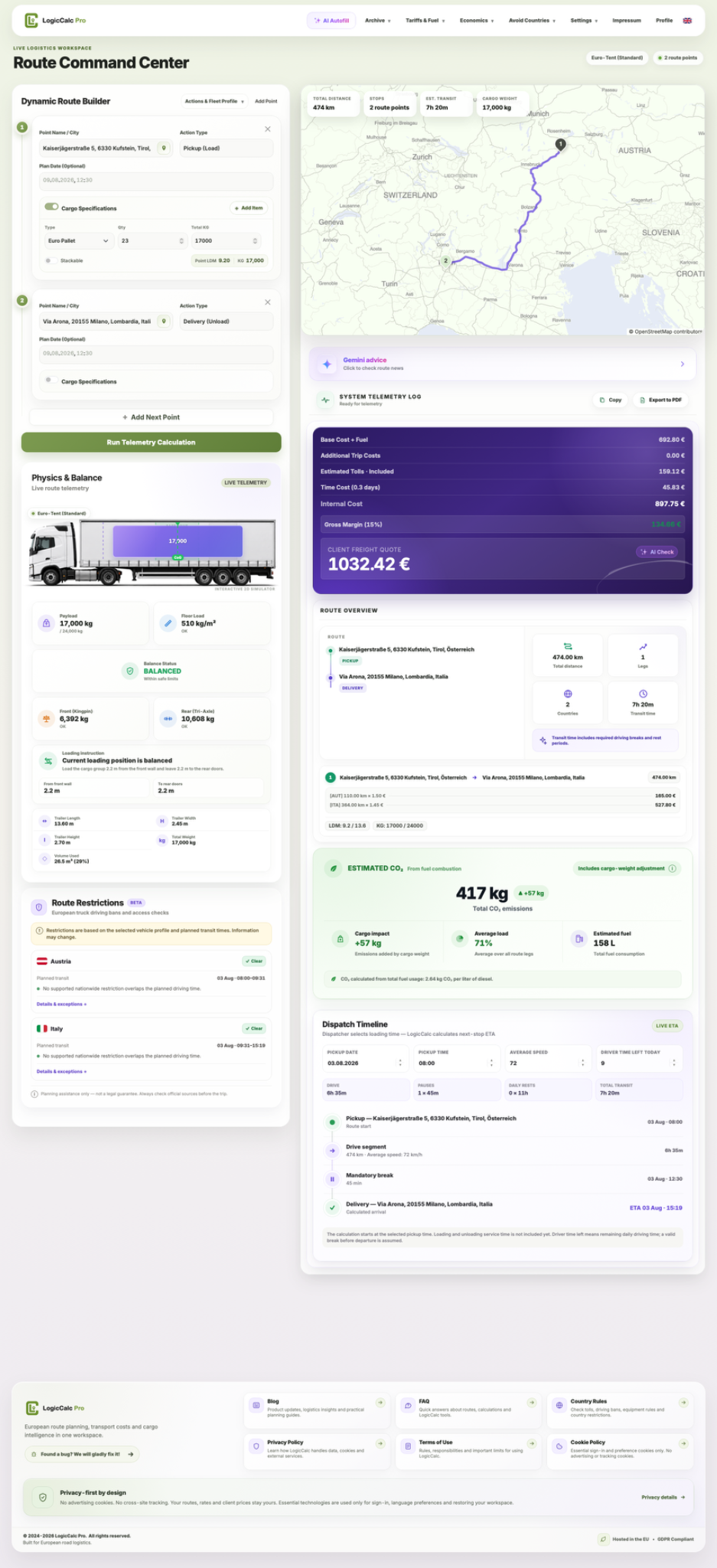
LogicCalc is a planning tool. Always verify operational, legal and contractual requirements for the actual transport.